
Note: Development on the 'official' version of Universal Extractor has stopped. It's not exactly abandoned, but since I no longer run Windows it's not something I have much of a need for these days. There have been a lot of unofficial forks and continuations released, and while I appreciate the effort and enthusiasm, most of those have been closed source updates that I wouldn't recommend.
That said, I recently discovered a project calling itself Universal Extractor 2. I'm not affiliated with the project in any way, but it seems to be a nice continuation of the project in the original open source spirit as my own creation. I've not used it myself, but if you're having trouble with the official version or not able to get it to extract newer formats and executables, I'd recommend giving Bioruebe's version a try.
Skip to: Download/Screenshots | Installation and Usage | Technical Details | Supported Formats | Credits
Introduction
Universal Extractor Feedback
If you have any questions about, or find any problems with, Universal Extractor, please post your comments to the UniExtract subforum on the MSFN message board. This has become the main point of discussion for this project.
Universal Extractor is a program designed to decompress and extract files from any type of archive or installer, such as ZIP or RAR files, self-extracting EXE files, application installers, etc. The full list of supported formats can be found in the table below. It's able to support so many varied file formats by utilizing the many backend utilities listed in the credits at the bottom of the page.
Please note that Universal Extractor is not intended to be a general purpose archiving program. It cannot (and never will) create archives, and therefore cannot fully replace archivers such as 7-Zip or WinRAR. What it will do, however, is allow you to extract files from virtually any type of archive, regardless of source, file format, compression method, etc.
The original motivation behind this project was to create an easy, convenient way to extract files from various types of installation packages without the need to remember arcane command line switches or track down separate utilities to handle the unpacking. Over time, and with the encouragement of its many users and the fine folks over on the MSFN forum, it has evolved into a mature and very capable unarchiving utility that many, including myself, find indispensable.
Screenshots
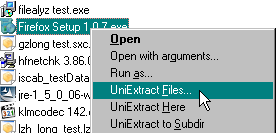
Universal Extractor context menu
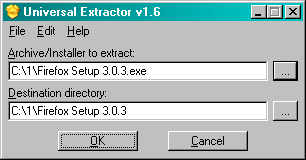
Universal Extractor file/destination GUI
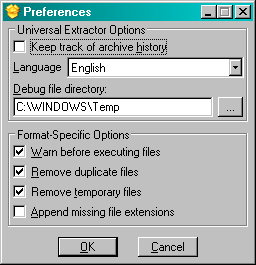
Universal Extractor preferences
Download Current Version: 1.6.1, Released: 05/12/2010
UniExtract Installer ( MB) - This is the recommended download. The installer will automatically install the application and optionally integrate with the Windows Explorer context menu. This package does not contain source code.
UniExtract Binary Archive ( MB) - This archive contains the binaries. Download this if you want a portable version, or just prefer not to use the installer.
UniExtract Source Code ( KB) - This archive only contains the source code, but it includes all support files as well (compiler scripts, installer, etc.). This is best to download (along with the binary archive) if you want to help further development of UniExtract.
ChangeLog, ToDo - UniExtract development details
Note: If you download Universal Extractor from one of the official links above, it is not infected with a virus. If your anti-virus software tells you otherwise, please see this forum post for details.
Language Files
As of version 1.4, Universal Extractor supports internationalization. If you're interested in translating Universal Extractor into another language, please download the source archive and follow the instructions in English.ini. Please send me your completed translation and I'll include it in the next version of Universal Extractor. Thanks to all of the contributors!
To use these language files, simply download and copy into the lang\ directory of your Universal Extractor installation. The new language will appear as an option the next time you run UniExtract.
Note: The (alt) language files are alternate translations that are not included with the official release. Sometimes I get multiple submissions for a single language, and I like to give everyone credit, but I generally stick with the first one that's submitted out of fairness. Some of the alternate translations may be better than the included ones (or, they may not be), so feel free to give them a try. If you find that an alternate version is better than the included version, please let me know; I may switch them out for the next release.
| Language File | Native Name | Contributor | Date | Added/Updated |
|---|---|---|---|---|
| Arabic | العربية | Awadh A Al-Ghaamdi | 10/22/2008 | true |
| Arabic (alt) | العربية | Musab (KooTaa) | 10/12/2008 | flase |
| Armenian | Հայերէն Hayeren | Hrant Ohanyan | 05/11/2010 | true |
| Bulgarian | Български | Кирил Кирилов (DumpeR) | 10/12/2008 | true |
| Chinese (Simplified) | 简体中文 | phCole | 05/13/2010 | flase |
| Chinese (Traditional) | 繁体中文 | Huang Junwei | 11/21/2006 | true |
| Croatian | Hrvatski | Tomislav Glušac | 10/22/2008 | true |
| Croatian (alt1) | Hrvatski | Danijel Ivanieviæ | 05/11/2010 | flase |
| Croatian (alt2) | Hrvatski | Ivica Hrvoj Ivanić | 10/12/2008 | flase |
| Czech | Čeština | Lubomír Hajda | 05/11/2010 | true |
| Dutch | Nederlands | Robby Kooken | 10/12/2008 | true |
| English | English (American) | Default/native language file | 05/12/2010 | true |
| Finnish | Suomi | Teijo Sakkara | 10/25/2008 | true |
| French | Français | jacklours | 10/22/2008 | true |
| German | Deutsch | Arno Krumpholz | 05/13/2010 | flase |
| Greek | Ελληνικά | Nick Mattheakis | 10/22/2008 | true |
| Hungarian | Magyar | Simon László | 03/25/2007 | true |
| Italian | Italiano | TJL73 / Roberto Boriotti | 05/11/2010 | true |
| Japanese | 日本語 | Yachuko Nakai | 11/28/2006 | true |
| Japanese (alt) | 日本語 | Nardog | 11/28/2006 | flase |
| Korean | 한국어/조선말 | Sunsuk Kim | 03/21/2007 | true |
| Persian (Farsi) | فارسی | Sajjad Mohammadi | 05/11/2010 | true |
| Polish | Język Polski | ULTIMA PRIME | 02/22/2007 | true |
| Portuguese | Português | José Gonçalves | 03/01/2007 | true |
| Portuguese (Brazilian) | Português | ZimzuM / Marcio Barbosa | 03/21/2007 | true |
| Romanian | Limba Română | Cristian Stefan | 02/27/2007 | true |
| Russian | Русский язык | gora | 05/11/2010 | true |
| Russian (alt) | Русский язык | AVV_UA | 10/12/2008 | flase |
| Russian (old) | Русский язык | Polarbond | 02/22/2007 | flase |
| Serbian | Srpski | Ivan Stambolić | 05/11/2010 | true |
| Slovak | Slovenčina | Peter Žilák | 02/22/2007 | true |
| Spanish | Español | Mario Ángel / Leonardo Mauro | 02/22/2007 | true |
| Spanish (alt) | Español | Arturo Vergara | 05/13/2010 | flase |
| Swedish | Svenska | Stefan Weber | 05/11/2010 | true |
| Taiwanese | 臺灣話 | YoYo | 10/12/2008 | true |
| Thai | ภาษาไทย | Pruthisith (Terry) Prateepavanich | 11/28/2006 | true |
| Turkish | Türkçe | Onur AYDIN | 03/01/2007 | true |
| Ukrainian | украї́нська мо́ва, | Warrior | 10/28/2008 | true |
| Valencian (Catalan) | Valencià (Català) | Rafel Hidalgo i Rangel | 03/25/2007 | true |
| Vietnamese | Tiếng Việt | Nguyen Nhat Quang | 02/22/2007 | true |
Installation and Usage
To install UniExtract, download the installer and run it on your system. You will have a few options during installation:
Select Components - These options specify which program components are installed to disk. These options are only really useful if you need to reduce the installation size.
Documentation and licensing information- This includes all files in thedocs\subdirectoryLanguage files for internationalization support- This includes all files in thelang\subdirectorySupport for ACE files- Binaries and/or libraries required for ACE archivesSupport for KGB files- Binaries and/or libraries required for KGB archivesSupport for Pea files- Binaries and/or libraries required for Pea archivesSupport for StuffIt files- Binaries and/or libraries required for StuffIt (.sit) archives
Set Program Options - These options adjust the default Universal Extractor behavior. They can be changed after installation through the Preferences menu.
Default Language- specifies the language used by UniExtractDebug File Location- specifies the directory to which UniExtract should write its debug fileAppend missing file extensions- attempt to determine and append the correct extension for improperly named files using TrIDMaintain archive history- maintain a list of the ten most recent files that were extracted, as well as the destination directoriesRemove duplicate files- attempt to detect and remove duplicate that may have been created during extractionRemove temporary files- automatically remove temporary files that may be created during extractionWarn before executing files- some .exe archives must actually be executed in order to perform the extraction. Since this can be a security risk (executing unknown/untrusted code is always a bad idea), UniExtract will display a warning before extracting these types of files.
Select Additional Tasks - These options specify additional actions that can be performed by the installer. They only affects installation of Universal Extractor, and cannot be modified later.
Enable Explorer context menu integration- allows you to right click on any archive and directly extract its filesAdd UniExtract Files... to context menu- adds ability to specify destination directoryAdd UniExtract Here to context menu- adds ability to quickly extract to current directoryAdd UniExtract to Subdir to context menu- adds ability to quickly extract to subdirectoryForce association with with all supported archive formats- Forces UniExtract to associate itself with all supported file extensions; by default, it will only associate itself with native Windows formats (.exe, .msi, etc.) and other formats not currently associated with another program
Add Universal Extractor to your system path- allows you to run UniExtract (and any related binaries) from the command lineCreate a SendTo icon- add a shortcut for Universal Extractor to your SendTo context menuCreate a desktop icon- add a shortcut for Universal Extractor to your desktopCreate a Quick Launch icon- add a shortcut for Universal Extractor to your Quick Launch bar
If you wish to automate installation (for custom or unattended installs), please run uniextractXX.exe /? to get a detailed description of available command-line options for the installer. All standard Inno Setup command line parameters apply, but also pay special attention to the Components, Tasks, and Custom Parameters detailed at the bottom of the help window.
For manual installation with the binary archive, simply extract the files to the destination folder you would like. By default, this puts UniExtract in "portable mode". This means that the globalprefs option is enabled (see changelog for details) and the history option is disabled (see Program Options above). The end result is UniExtract can be easily run from portable devices like USB flash drives without leaving any trace of use. Of course, it'll also work just as well if copied to a real hard drive, and all preferences can be modified at any time by editing UniExtract.ini, or by running UniExtract.exe /prefs.
Once UniExtract is installed, usage is simple. The easiest way, if you used the installer and enabled context menu integration, is to right-click on any archive and select click one of the UniExtract options. UniExtract Here will extract files to the current directory, UniExtract to Subdir will extract files to a subdirectory named after the file, and UniExtract Files will prompt you for the destination directory.
If you did not enable context menu integration, you may run the Universal Extractor start menu shortcut, or double-click directly on UniExtract.exe. This will launch the UniExtract GUI. Enter (or use the file browser to select) the file you wish to extract and the destination directory, then click OK. It is also possible to drag-and-drop the file you wish to extract onto the icon or main application window to easily extract the dropped file.
UniExtract can also be run from the command line. Run UniExtract.exe /? for detailed command line parameters.
You can use Add/Remove Programs to uninstall UniExtract, or just delete the directory if you used the binary archive.
Technical Details
When a file is passed to UniExtract, it begins by scanning the file with TrID. If the file format matches one of the supported non-executable formats listed below, it immediately begins extraction from the archive. If it's an executable file, it calls PEiD to analyze the file signature. If the signature indicates that it's a supported format, then it attempts to begin extraction. If it is not a recognized signature, it will try running it through 7-Zip and UnZip as default cases. If 7-Zip or UnZip recognizes it, it will be extracted; otherwise, UniExtract displays an error message and exits.
Note: Filetype scanning with TrID is new as of v1.5. Older versions relied on the file extension to identify the filetype. This behavior is still used if the TrID scan cannot determine the filetype.
If the filetype is supported, UniExtract begins by checking for a valid destination directory and recording the directory size. If necessary, a new directory will be created (with a directory size of zero). UniExtract then spawns a shell and calls the supporting binary to begin extracting files from the selected archive to the destination directory. After completion, UniExtract checks the size and timestamp of the subdirectory to determine if extraction was successful; if the size or timestamp is greater than the initial values, UniExtract assumes success and exits. If extraction fails, UniExtract notifies the user and leaves a log file (uniextract.log) that (should) contain any error messages.
The uniextract.log file is created during the extraction process by the tee program. Essentially, all output from the running binary is redirected to tee, which in turn writes the output to the log file as well as echo it to the screen to give the user current progress. Upon successful execution this file is deleted, but if an error is detected it is left alone for the user to review. Note: As of v1.4, the location of uniextract.log can be changed to any user-specified directory.
Supported Formats
As of v1.5, UniExtract uses TrID to determine the filetype of any given file. If this detection fails, file extensions are used as a backup identifier. The table below is a reference of known-supported filetypes and common extensions; any supported archive types should work regardless of actual extension.
| Archive Type | Common File Extension(s) |
|---|---|
| 7-zip archive | .7z, .exe |
| ACE archive | .ace, .exe |
| ARC archive | .arc |
| ARJ archive | .arj, .exe |
| ASpack compressed file | .exe |
| BIN/CUE CD-ROM image | .bin, .cue |
| bzip2 archive | .bz2, .tbz2, .tar.bz2 |
| CPIO compressed file | .cpio |
| Debian package | .deb |
| DiscJuggler CD-ROM image | .cdi |
| Encoded files | .b64, .uu, .uue, .xx, .xxe, .yenc, .ntx |
| Gentee package | .exe |
| gzip archive | .gz, .tgz, .tar.gz |
| IMG floppy disk image | .img |
| Inno Setup package | .exe |
| Installer VISE package | .exe |
| InstallShield Cabinet archive | .cab, .1, .lib |
| InstallShield package | .exe |
| ISO 9660 CD-ROM image | .iso |
| KGB archive | .kgb, kge, .exe |
| LZH compressed file | .lzh, .lha |
| LZMA compressed file | .lzma |
| LZO compressed file | .lzo |
| LZW compressed file | .Z, .tz, .tar.Z |
| LZX compressed file | .lzx |
| MHTML file | .mht |
| Microsoft Cabinet archive | .cab, .exe, .imf |
| Microsoft Compiled Help file | .chm |
| Microsoft compressed file | .??_ |
| Microsoft LIT e-book | .lit |
| Microsoft Windows Help file | .hlp |
| HTC NBH ROM image | .nbh |
| Nero CD-ROM images | .nrg |
| NSIS package | .exe |
| Oasis Document Format (ODF) document | .odt, .odp, .odg, .ods |
| Office Open XML (OOXML) document | .docx, .pptx, .xlsx |
| Outlook Express mail archive | .dbx |
| PEA archive | .pea |
| RAR archive | .rar, .001, .exe |
| Reflexive Arcade package | .exe |
| RoboForm package | .exe |
| RPM package | .rpm |
| SetupFactory package | .exe |
| SIS (SymbianOS) packages | .sis |
| StuffIt packages | .sit |
| TAR archive | .tar, .tbz2, .tgz, .txz, .tz, .tar.bz2, .tar.gz, .tar.xz, .tar.Z |
| UHARC archive | .uha |
| UPX compressed file | .exe, .dll |
| Windows Imaging Format image | .wim |
| Windows Installer merge module | .msm |
| Windows Installer package | .msi |
| Windows Installer patch | .msp |
| Windows Update Standalone patch | .msu |
| Wise Installer package | .exe |
| XZ compressed file | .xz, .txz, .tar.xz |
| ZIP archive | .zip, .jar, .xpi, .wz, .exe |
| Zoo archive | .zoo |
Credits
Universal Extractor relies heavily on other programs, and would not be possible without the incredible generosity of the Free Software community. This is a list of all of the applications that are used by, or in the creation of, Universal Extractor:
- 7-Zip (Igor Pavlov, Open Source) - Excellent general purpose Windows archive utility; used to extract .7z, 7-Zip SFX .exe, .bz2, .cab, .chm, .cpio, .deb, .gz, .iso, .lha, .lz, .lzh, NSIS installer .exe, .rpm, .tar, .xz, .wim, and .Z files (and probably even more that I overlooked)
- ARC (Howard Chu, Open Source) - ARC archiving utility; used to extract .arc files; Note: binary was obtained from http://gnuwin32.sourceforge.net/packages/arc.htm
- AspackDie (yoda, Open Source) (homepage seems dead) - Unpacker for ASPack-compressed files; used to unpack .exe files with ASpack compression
- AutoIt (Jonathan Bennett, Open Source) - General-purpose Windows scripting language; used to write the UniExtract front-end
- bin2iso (Bob Doiron, Joonas Loppi, Open Source) - Utility to convert BIN/CUE CD-ROM images to ISO images; used in conjunction with 7-Zip to extract .bin/.cue images
- Barebones Ooz (Booz) - (Rahul Dhesi, Open Source) - Zoo archive extractor/lister; used for extracting .zoo files
- cdrip (DeXT, Open Source) (homepage seems dead, possible replacement) - Utility to convert DiscJuggler (CDI) CD-ROM images to ISO images; used in conjunction with 7-Zip to extract .cdi images
- cmdTotal (Adam Blaszczyk, Open Source) - CLI frontend for Total Commander plugins; enables support for the following plugins used by Universal Extractor:
- DBX (Dmitri R. Letichevski, Freeware) - extracts Outlook Express mail archives
- InstallExplorer (Domo, Freeware) - Total Commander port of the InstallExplorer plugin for FAR by Sergei Wanin; extracts Gentee, Inno Setup, Installer VISE, InstallShield, NSIS, SetupFactory, and Wise Installer packages
- MHT Unpacker (Ariel Perez, Freeware) - extracts MHTML files
- MSI (Alex Gretha, Freeware) - extracts Windows Installer package (MSI) and patch (MSO) files
- PDunSIS (Patrik Daranský, Freeware) - extracts SIS (SymbianOS) packages
- Convert LIT (Dan A. Jackson, Open Source) - Converter for Microsoft Reader format e-books; used extract contents from .lit files
- Crystal SVG (Everaldo Coelho, Free) - Collection of extremely high-quality icons for Linux/KDE; used as the source graphics for the UniExtract icon
- E_WISE (Veit Kannegieser, Open Source) - Wise Installer decompiler; used for extracting files from Wise Installer packages
- extract (Gilles Vollant, Freeware) - Floppy disk image extraction utility; used to extract files from .img images
- ExtractMHT (Jared Breland, Open Source) - Splitter and base64 decoder for MHTML files; used to extract .mht files
- GIMP (Spencer Kimball and Peter Mattis, Open Source) - The GNU Image Manipulation Program; used to create the icons used by UniExtract
- HelpDeco (Manfred Winterhoff, Freeware) (homepage seems dead, possible replacement) - Decompiler for Windows Help files; used to extract/reconstruct .hlp files
- i3comp (Stirling Technologies, Freeware) - InstallShield 3.x Compression and Maintenance utility; used for extracting files from InstallShield 3.x installer packages; can be download as part of WinPack
- i5comp (fOSSiL, Open Source) - InstallShield 5.x Compression and Maintenance utility; used for extracting files from InstallShield 5.x installer packages; can be download as part of WinPack
- i6comp (fOSSiL, Morlac, Open Source) - InstallShield 6.x Compression and Maintenance utility; used for extracting files from InstallShield 6.x installer packages; can be download as part of WinPack
- Info-ZIP UnZip (Info-ZIP, Open Source) - Highly portable ZIP archive utility; used for extracting .zip and ZIP SFX .exe files
- Inno Setup (Jordan Russell, Open Source) - Open Source packaging application for Windows; used to create the UniExtract installer
- Innounp (QuickeneR, Open Source) - Inno Setup Unpacker; used for extracting files from Inno Setup installer packages
- IsXunpack (Pit0n and SkYuS//vN, Freeware) - InstallShield Unpacker; used for extracting files from modern InstallShield installer packages
- KGB (Thomasz Pawlak, Freeware) - KGB archiver; used to extract .kgb, .kge, and KGB SFX files
- lzop (Markus F.X.J. Oberhumer, Open Source) - LZO file compression utility; used to extract .lzo files
- MsiX (Heath Stewart, Open Source) - General purpose stream and transform extractor for Windows Installer files; used to extract files from .msi, .msm, and .msp files
- NBHextract (pof and TheBlasphemer, Freeware) - Utility to extract contents from NBH files (HTC device ROM images)
- nrg2iso (Greg Kokanosky, Open Source) - Utility to convert Nero (NRG) CD-ROM images to ISO images; used in conjunction with 7-Zip to extract .nrg images
- Open-source ARJ (ARJ Software Russia, Open Source) - Open Source implementation of the ARJ archiving utility; used to extract .arj and ARJ SFX .exe files
- PeaZip (Giorgio Tani, Open Source) - PeaZip archiver; used to extract Pea archives
- PEiD (Jibz, Qwerton, snaker, and xineohP, Freeware) - Portable Executable File Identifier; used to analyze .exe file signature to determine the filetype and whether or not it's a supported archive; includes Bob's external signature database
- RAIU (Icebird, Open Source) - Utility to unwrap Reflexive Arcade installers; used in conjunction with innounp to extract Reflect Arcade packages
- StuffIt Expander 6.0 (Aladdin Systems, Freeware) - StuffIt file decompressor; used for extracting .sit files
- StIX (Veit Kannegieser, Freeware) - Decompressor for InstallShield 3.x archives and installers; used to extract InstallShield 3.x archives (.1, .lib) and SFX installers (.exe)
- tee (Free Software Foundation, Open Source) - Shell utility that redirects standard input to multiple outputs; used to write messages to a log file while also displaying current progress; Windows binary was obtained from GNU Utilities for Win32
- TrID (Marco Pontello, Freeware) - Utility designed to identify file types from their binary signatures; used to determine the type of file passed for extraction
- UnLZX (Oliver Gantert, Open Source) - LZX file decompression utility; used to extract .lzx files
- UnRAR (Eugene and Alexander Roshal, Freeware) - Command-line utility for RAR archives; used to extract .rar and RAR SFX .exe files
- UnUHARC (Uwe Herklotz, Freeware) - Command-line utility for UHARC archives; used to extract .uha files; can no longer find a legitimate source
- UPX (Markus Oberhumer, Laszlo Molnar & John Reiser, Open Source) - Compression utility for PE files; used to unpack .exe and .dll files with UPX compression
- UUDeview (Frank Pilhofer, Open Source) - Encoded file decoder; used to decode Base64, UUencoded, XXencoded, and yEnc files
- WUN (Jägermeister Markus, Icebird, Open Source) - Wise-Setup Unpacker; used for extracting files from Wise Installer packages (updated version of HWUN)
- XAce (Marcel Lemke, Freeware) - ACE archive utility; used for extracting .ace and ACE SFX .exe files